Opening Hook
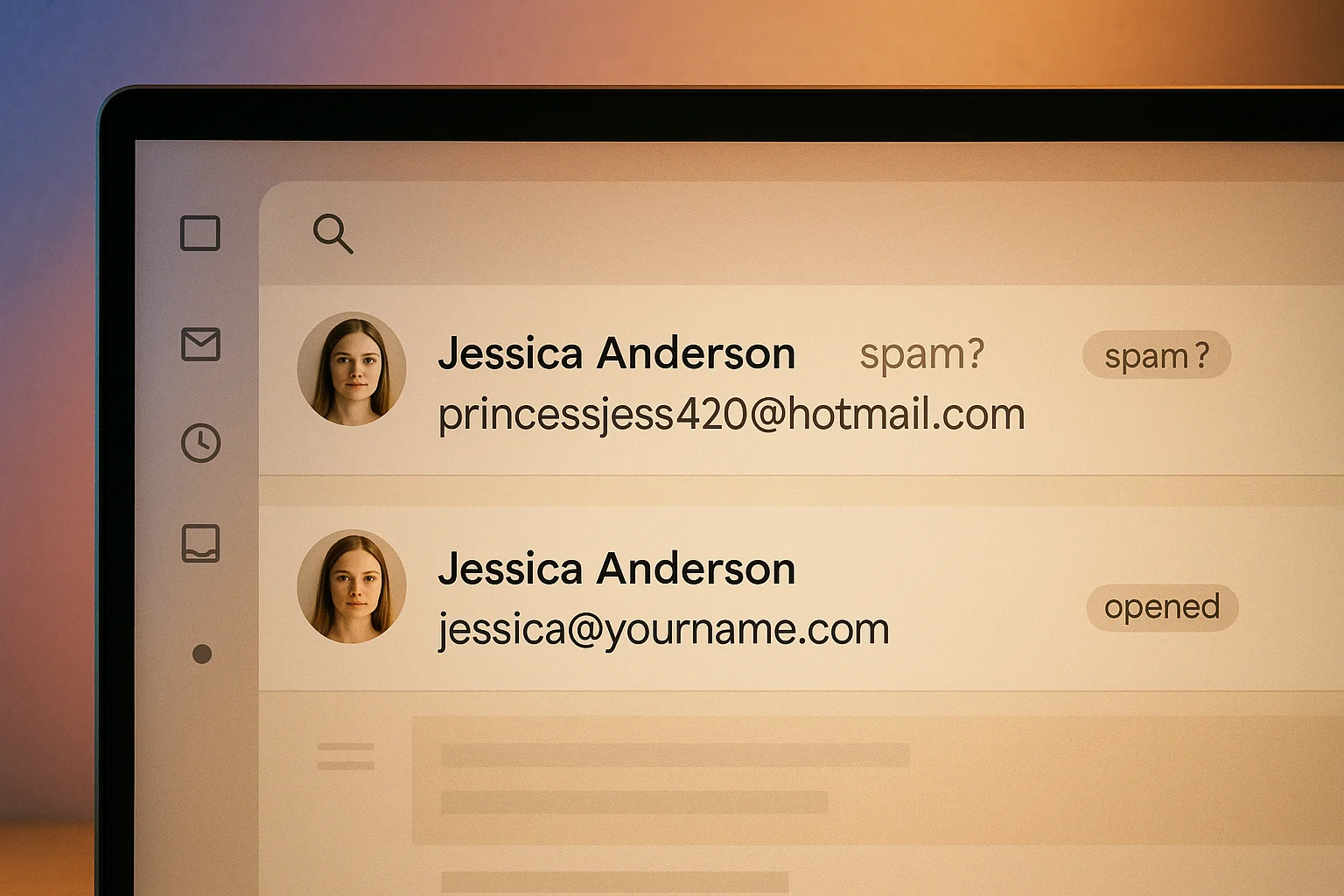
It’s Monday morning, and Lena Brandt, a recruiter at Outline Technologies, is ready to sift through a mountain of CVs. She’s got her coffee in hand as she opens her inbox. Two applications catch her eye for a senior designer role. The first email address reads princessnaomi420@hotmail.com. Lena chuckles, momentarily distracted by the mental image of a high schooler rather than a seasoned designer. She knows this isn’t fair, but first impressions matter, and email addresses are no exception.
She clicks on the second email, coming from naomi@naomihaddad.com. This one piques her interest right away. It’s clean, professional, and exudes a sense of credibility. Lena ponders how two identical CVs, presumably from the same Naomi, could evoke such different reactions. The content of a resume is crucial, but so is the packaging. As she reviews the applications, Lena is subconsciously more inclined to consider the candidate with the custom domain. It feels intentional, like this person has their life together and is serious about their professional image. In a competitive job market, these small details can make a significant difference. Lena’s mind is made up before she even dives into the resumes. Wouldn’t you want to be the Naomi with the custom email domain?
The ‘via gmail.com’ Problem
If you’ve ever tried to set up a custom email domain using Gmail’s Send-As feature, you might have encountered a tiny but significant issue: the ‘via gmail.com’ tag. Here’s what it looks like in plaintext: From: naomi@naomihaddad.com via gmail.com. It’s a small addition, but in the world of professional email, it’s like a tiny mark on an otherwise perfect canvas.
Most users don’t even realize this happens. They assume their custom email setup is pristine because they’ve done all the usual setup: verified domain ownership, configured DKIM and SPF records, and perhaps even added a DMARC policy. But the catch is, without full SMTP outbound, that pesky ‘via’ tag remains. It’s the unprofessional tax you pay when not opting for a full-fledged email hosting solution.
Different email apps display this tag in various ways. In Gmail’s web interface, it’s a subtle line that most users overlook, but it’s there. On Gmail mobile, the tag is more prominent, appearing right under the sender’s name. Apple Mail users might see it as a faint ‘via’ text next to the sender’s address. Outlook handles it similarly, but it feels more like a footnote. ProtonMail, known for its focus on security, also shows this tag, though it’s less conspicuous.
So, how do you actually get rid of that tag? It’s time to look at some methods that offer genuine solutions.
The 5 Methods
Method 1: Free Email Forwarding
Free email forwarding services like Cloudflare Email Routing, ImprovMX, or Forward Email are popular starting points. Let’s walk through setting it up with Cloudflare. First, you’ll add your domain to Cloudflare. This process involves changing your domain’s nameservers to Cloudflare’s, which can take a few minutes to propagate. Once that’s done, navigate to the Email Routing section. You’ll set up a forwarding rule that redirects all emails sent to your custom domain to your existing email account.
Imagine you’re a freelancer just starting out. You want to establish a professional presence without spending too much upfront. Free email forwarding is a great way to do this. You can start receiving emails at your custom domain, which looks much more professional than using a generic email address. However, this method has its limitations. While you can receive emails at your custom domain, replying still exposes your personal email address. It’s a receive-only solution, so if you’re planning on responding, you’ll need to look elsewhere or accept that your original email will be visible. It’s a great first step for those who want to establish a presence without complicated setups.
Consider a scenario where you’re a small business owner who wants to keep costs low. You can use a service like ImprovMX to forward emails to your existing Gmail account. This way, you can maintain a professional appearance without additional expenses. However, be prepared for the limitation that your replies will reveal your original email address. If that’s an acceptable trade-off for you, free email forwarding is a simple and effective solution.
Method 2: Gmail Send-As + Your Own SMTP
For those a bit more tech-savvy, setting up Gmail with your own SMTP server is an option. Here’s a step-by-step guide to the setup:
- Verify domain ownership with your DNS provider.
- Generate DKIM keys for your domain.
- Add an SPF record to your domain’s DNS.
- Set up a DMARC policy.
- Obtain SMTP credentials from your chosen hosting provider.
- In Gmail, go to Settings > Accounts > Send mail as.
- Enter your custom domain email address.
- Input the SMTP server details, typically port 587.
- Enter the SMTP username and password.
- Verify the setup with a code sent to your email.
- Test sending an email to ensure it’s working.
Imagine you’re a tech-savvy entrepreneur who wants full control over your email setup. You decide to use Gmail’s Send-As feature with your own SMTP server. This allows you to send emails from your custom domain without the ‘via gmail.com’ tag. The process requires some technical know-how, but the result is a clean and professional email setup. You might choose a hosting provider like Bluehost or SiteGround for your SMTP needs. These providers offer reliable services and are well-suited for small businesses or individuals who want a professional appearance.
Consider a scenario where you’re a small business owner looking to enhance your brand image. By setting up your own SMTP server, you can eliminate the ‘via gmail.com’ tag and maintain a professional appearance. This method requires some technical expertise, but the benefits are significant. You’ll have full control over your email setup and can ensure your emails are delivered without any branding from third-party services. If you’re comfortable with the technical aspects, this method offers a powerful solution for a professional email presence.
Method 3: Google Workspace ($72/year per user)
Google Workspace provides a more professional alternative, especially for small businesses with multiple seats. At $72 per year per user, it offers a full suite of tools beyond email, including Google Drive, Calendar, and Docs. The setup is streamlined, typically taking around 28 minutes. You’ll need to verify your domain through DNS verification, which is straightforward with Google’s step-by-step instructions.
Imagine you’re a small business owner with a team of five employees. You need a reliable email solution that offers more than just email. Google Workspace provides a comprehensive suite of tools that enhance collaboration and productivity. With Google Drive, your team can store and share files effortlessly. Google Calendar keeps everyone on the same page with scheduling, and Google Docs allows for real-time collaboration on documents. The $72 per year per user cost is a worthwhile investment for a professional and efficient workplace.
Consider a scenario where you’re an independent consultant who frequently collaborates with clients. Google Workspace offers a clean way to manage your professional communications. The suite of tools allows you to create and share documents with clients, schedule meetings effortlessly, and maintain a professional email presence. The cost might seem high if you’re only looking for an email solution, but the additional tools and peace of mind make it a valuable investment for your consulting business.
Method 4: Privacy Email Hosts
Privacy-focused email providers like ProtonMail, Fastmail, Migadu, and Tutanota offer custom domain support with built-in DKIM and SPF configuration. Pricing varies: ProtonMail at about $48/year, Fastmail at $60/year, and Migadu as low as $19/year. You’ll need to purchase your domain separately, usually costing between $12 and $15 per year.
Imagine you’re a privacy-conscious individual who values security and confidentiality in your communications. You choose ProtonMail for its reliable encryption and privacy features. ProtonMail’s custom domain support allows you to maintain a professional email presence while ensuring your communications are secure. The built-in DKIM and SPF configuration simplify the setup process, making it easy to get started.
Consider a scenario where you’re a small business owner who deals with sensitive client information. You choose Fastmail for its balance of privacy and usability. Fastmail’s custom domain support allows you to maintain a professional appearance while ensuring your emails are properly authenticated. The service handles the technical setup, reducing the risk of your emails ending up in spam folders. The peace of mind that comes with knowing your communications are secure is invaluable for your business.
Method 5: Magic-Reply Pattern
This method utilizes a managed magic-reply email service. Let’s break down the architecture:
Inbound: Recruiter -> Cloudflare MX -> Email Routing -> Your Gmail Outbound: You hit Reply -> hidden alias on reply.freecv.org -> Cloudflare Worker rewrites From -> AWS SES delivers as you@yourname.com -> Recruiter sees you@yourname.com (no via tag)Imagine you’re a freelancer or consultant who wants a professional email setup without the hassle of managing technical details. The magic-reply pattern offers a convenient solution. You can set up your custom email domain in just a few minutes, maintaining a professional appearance without the ‘via gmail.com’ tag. The service includes domain registration, making it an all-in-one option for those who want a quick and easy setup.
Consider a scenario where you’re a job seeker looking to enhance your professional image. The magic-reply pattern provides a simple way to establish a professional email presence. The service handles the technical setup, allowing you to focus on your job search. With the clean email presentation, recruiters will see your custom domain, enhancing your credibility and increasing your chances of landing interviews.
Comparison Matrix
Let’s put these methods side by side to see how they stack up.
| Method | Recruiter sees | Cost / year | Setup time | Tech setup | Privacy |
|---|---|---|---|---|---|
| Free Email Forwarding | name@gmail.com (on reply) | Free | ~15 min | DNS records | Low |
| Gmail Send-As + SMTP | you@yourdomain.com (with via gmail.com) | Free + your SMTP | ~1 hour | Full SMTP, DKIM, SPF, DMARC | Medium |
| Google Workspace | you@yourdomain.com (clean) | $72 | ~28 min | DNS verification | Medium |
| Privacy Email Hosts | you@yourdomain.com (clean) | $48–60 | ~30 min | DNS records | High |
| Magic-Reply Pattern | you@yourdomain.com (clean) | Domain cost plus the service | ~60 sec | None | Medium |
Recruiter Penalty Data
According to a study by TheLadders in 2024, 76% of senior recruiters notice an email domain. In the 6-8 second scan of a resume, it’s one of the subconscious cues they use to gauge professionalism. Lena Brandt, our recruiter from earlier, might say: "When I see a hotmail address on a senior application, I’m not assuming malice, but I am assuming the candidate hasn’t updated their professional toolkit since high school."
This might seem harsh, but context matters. In a sea of applications, small details can mean the difference between getting a callback or not. If you’re serious about your professional image, investing in a custom email domain is a no-brainer. For some real-world inspiration, you can check out CV examples by role.
FAQ
How long does it take to set up a custom email domain?
The setup time varies depending on the method you choose. Free email forwarding can be done in as little as 15 minutes, while setting up Gmail with your own SMTP might take an hour. Google Workspace and privacy email hosts generally take around 30 minutes. The magic-reply pattern is the quickest, often under 5 minutes.
Can I keep my current Gmail and just add a custom domain on top?
Yes, you can. Many of these methods allow you to forward emails to your existing Gmail account, keeping everything consolidated. Just remember, if you’re using Gmail’s Send-As feature, be mindful of the ‘via gmail.com’ tag unless you implement your own SMTP or use a service that bypasses it.
Is paying for a custom email domain really worth it?
That depends on how often you apply. If you send a handful of applications a year, free forwarding does the job. If you are applying weekly, or freelancing, or emailing clients, the cleaner presentation pays for itself quickly. Google Workspace at $72 a year and the privacy hosts between $48 and $60 are the honest middle ground, and you still own the domain either way.
What happens if I cancel?
If you cancel a paid service like Google Workspace or a privacy host, your custom email address will no longer function. You might lose access to any associated tools or storage. It’s wise to back up any important data before cancelling and ensure you have another email solution in place.
Will my custom email end up in spam folders?
Proper configuration of DKIM, SPF, and DMARC records significantly reduces the risk of your emails landing in spam folders. Using a reputable email hosting service also helps. It’s crucial to follow best practices in email sending to maintain a good reputation with email providers.
Can I use this for a side business or freelance work?
Absolutely. A custom email domain enhances your professional image, making it ideal for freelance work or side businesses. It shows clients you’re serious and organized, potentially leading to more opportunities and trust.
Closing
So, there you have it. The next CV you send out could look remarkably different with a professional email domain. It’s not just about appearances; it’s about making sure you present yourself in the best light possible. Pick the method that matches how much setup you can stomach, and give the recruiter one less reason to hesitate.
A sharp email address gets you read. What you send still has to survive the screener. Build a CV that reads well to both, and share it at livelink.cv/yourname without paying for hosting.
Build your CV free →